First run checklist
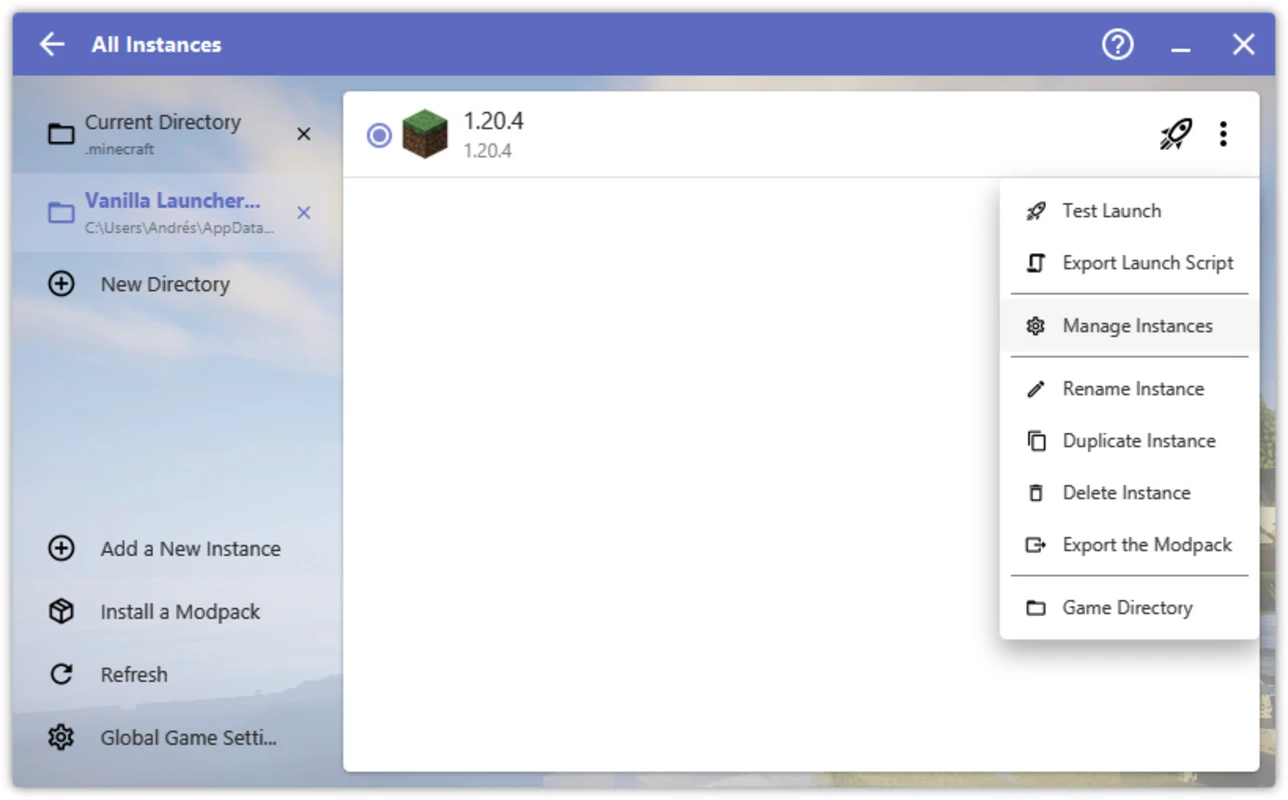
- Confirm you selected the HMCL build that matches your operating system and CPU architecture.
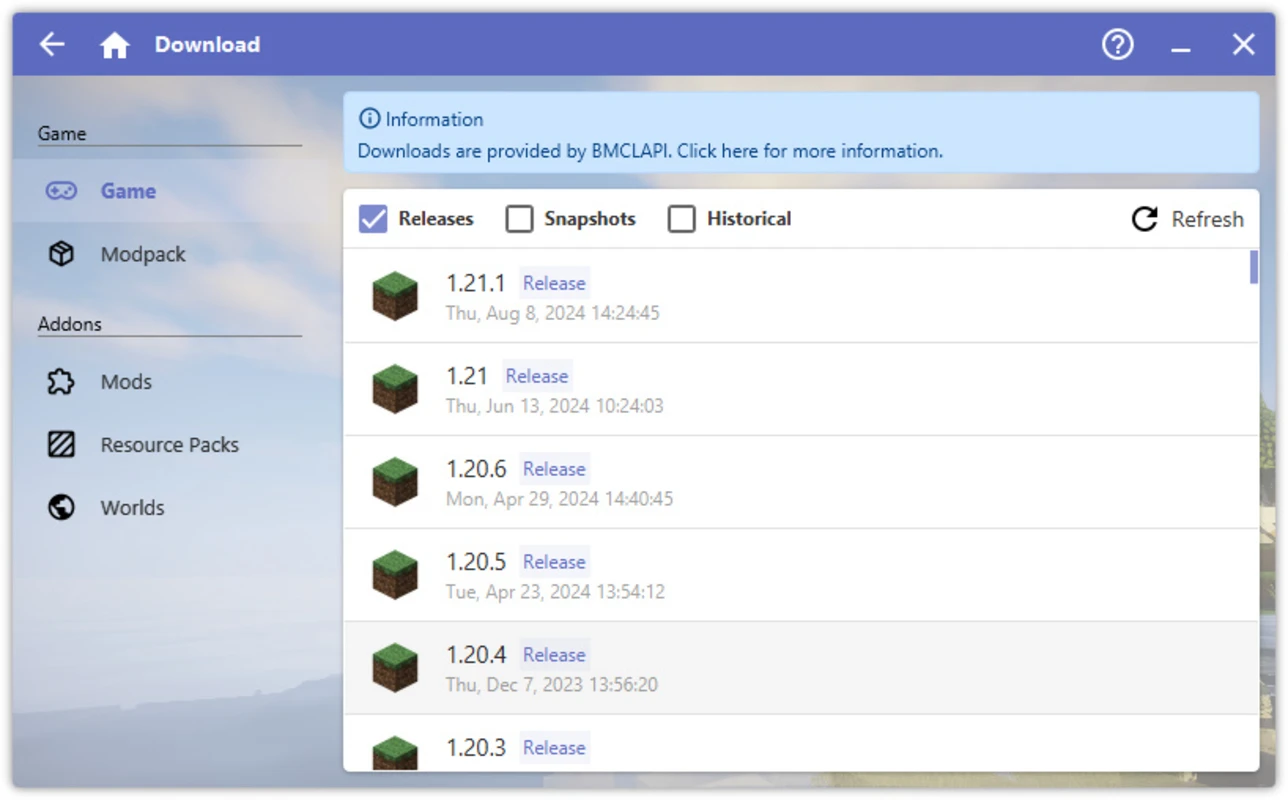
- Install or select a Java runtime that matches your Minecraft version and mod loader documentation.
- Create a fresh instance before importing a large mod pack so paths stay obvious.
- Launch vanilla once in that instance to confirm base game health before adding mods.
- Back up saves before major upgrades to Minecraft or the loader stack.
Java setup that survives updates
Most HMCL support threads boil down to Java mismatch: too new for old Forge, too old for modern Fabric stacks, or a 32-bit runtime on a 64-bit mod pack. Fix the runtime before you chase mod bugs.
Step 1: identify your Minecraft line
Open the instance settings inside HMCL and read the pinned Minecraft version. That number constrains which Java major versions are realistic.
Step 2: align the mod loader matrix
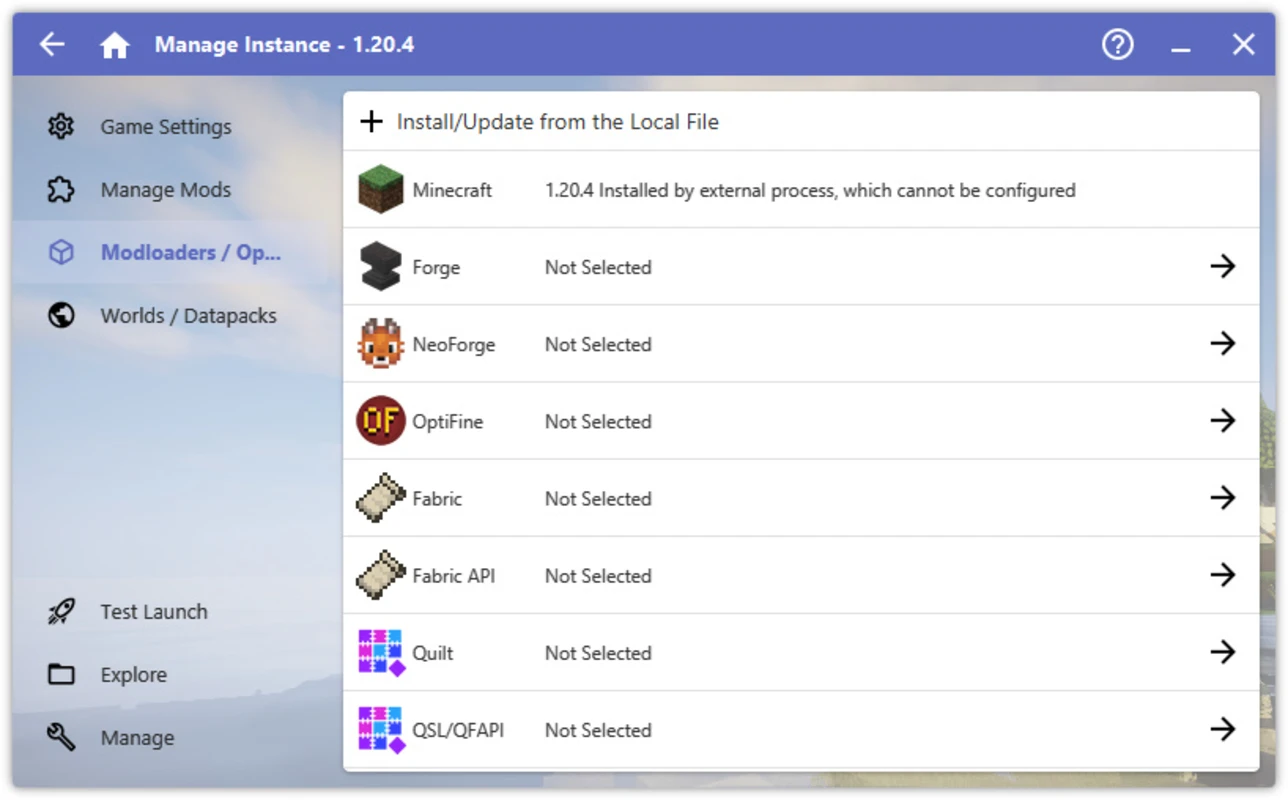
Forge, NeoForge, Fabric, and Quilt each publish compatibility tables. HMCL helps install loaders, yet the authoritative answer is always the loader documentation for that Minecraft version.
Step 3: point HMCL at one Java home
Prefer a dedicated Java install for gaming. Avoid mixing system-wide JDK upgrades with a fragile modded instance. After you change Java, restart HMCL and perform a clean launch to clear cached environment assumptions.
Memory tuning without guesswork
Assigning "all RAM to Minecraft" starves the operating system and increases stutter. Assigning too little RAM causes chunk generation failures and out-of-memory exits on large packs.
- Start near the pack author's recommendation if one exists.
- Raise memory in 512 MB steps while watching launch time and world load stability.
- Pair memory changes with conservative JVM flags until the pack is stable.
Reading logs and crash hints
When Minecraft exits, the useful signal is almost always near the bottom of the latest log: missing class files, mixin failures, or version skew between mods. HMCL helps you reach the right folder quickly if you keep instances separated.
Ordered workflow
- Reproduce the crash once cleanly.
- Open the instance directory from HMCL.
- Collect the newest log file and search for
Exceptionmarkers. - Remove the last mod you added before the regression, then retest.
Resolving mod conflicts
Conflicts appear as duplicate libraries, two mods editing the same game class, or optional modules that disagree on world generation. HMCL cannot magically merge incompatible bytecode, but it gives you a stable workspace to bisect problems.
Binary search removals
Disable half the mods, test, then narrow the set until one jar reproduces the failure.
Version pins
Upgrade one mod at a time across major Minecraft bumps so you know which change broke compatibility.
Datapack order
Worldgen datapacks interact. Keep a known-good world backup before reordering or adding experimental packs.
See also: Catalog and content tools.
Antivirus warnings explained
Heuristic engines sometimes label launchers as risky because they download executables and write into user profile directories. That pattern is shared by both malware and legitimate modding tools.
Safety sequence
- Pause new mod installs until you finish triage.
- Compare SHA256 with the published value for the exact file name.
- Scan with updated definitions, then restore only if hashes match.
- If doubt remains, do not run the binary on sensitive machines.
Legal framing lives on Trust and security.
Best practices for long campaigns
Instance hygiene
One instance per major pack, separate worlds for experiments, and a naming scheme that encodes Minecraft version and loader.
Backup cadence
Automate weekly copies of your saves folder to external storage. Modded worlds are expensive to rebuild.
Responsible multiplayer
Follow server rules, disclose client-side mods when required, and avoid automation that harms server performance or other players.